Public Uploads
Upload invitation links are here! Simply send a created link to invite recipients to upload images to a specific folder.
This is for those that need a secure and simple, no login, method to collect digital content from external parties such as vendors, partners, or suppliers, DBGallery’s new Public Uploads feature provides a highly convenient solution. This Public Upload link (aka Guest Upload) acts as a secure, controlled intake channel, enforced by the strictly upload-only mandate: external users can deposit files of any type and size into a designated folder, but they are absolutely prevented from viewing, editing, or deleting any existing assets within the system. Simply send the created link to invite recipients to upload images.
A few key points:
- No login is required.
- Images already existing in the folder cannot be seen by those opening the link.
- No operation other than uploads can be performed within the folder by those opening the link.
- The link can be disabled or removed completely using DBGallery's Share Management page.
- Only SuperAdmin roles can configure Public Uploads.
NOTE: Given points 2 and 3, public uploads are safe and secure.
How it looks
Let's start with how it looks to the person performing the upload:
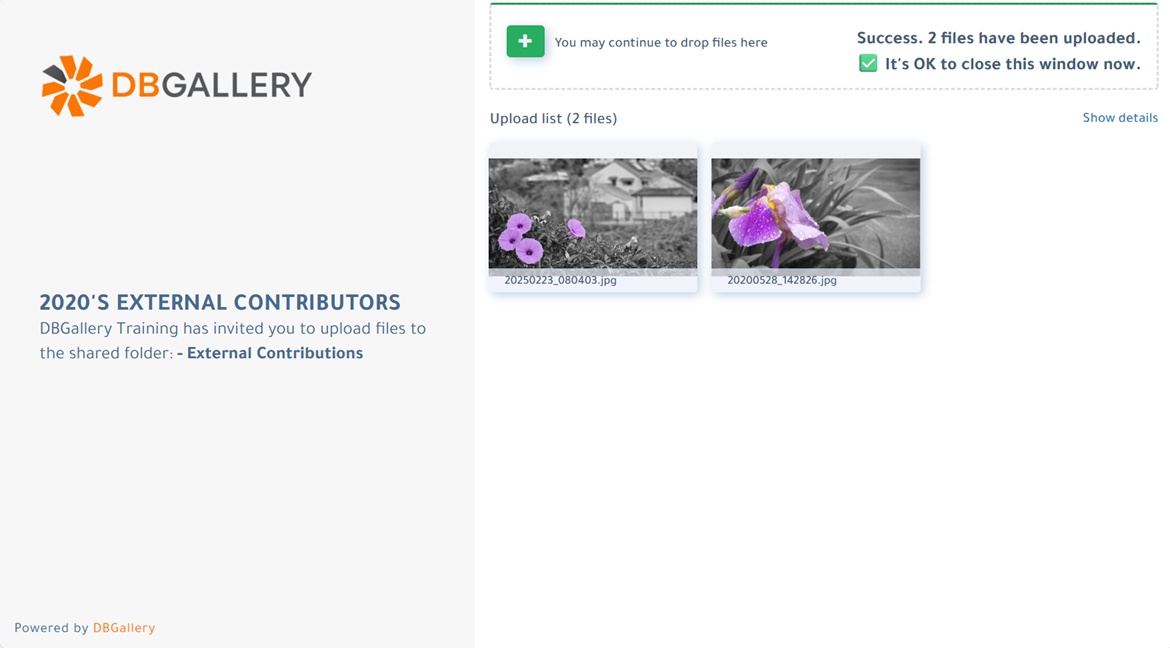
How it's done
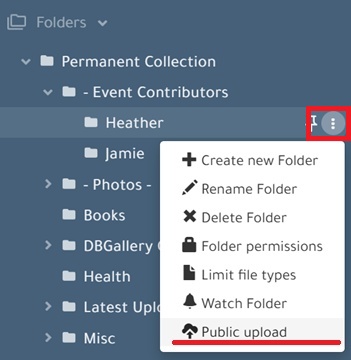
1. Select the 3 dots to the right of the folder to be upload to:
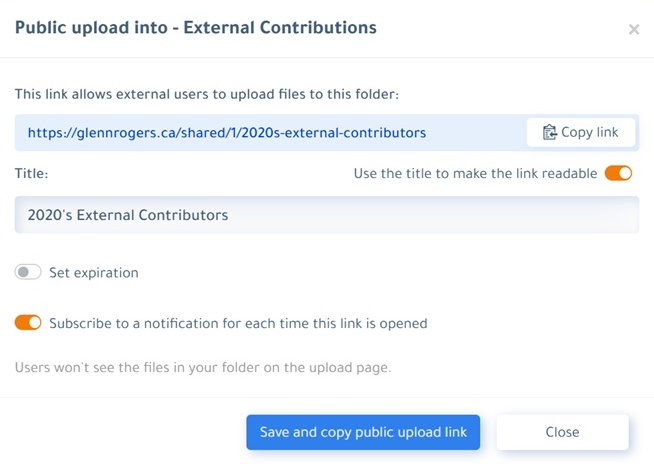
2. Configure the upload
Here the public folder is named '2020's External Contributors'. Note how the link includes that name. This is also the identifier to find it in Share Management.
3. Send the link
Simply send the created link to invite recipients to upload images. Do so via email, Slack, or any other way you normally communication with those you are inviting to upload.
Workflow Integration
Newly uploaded images may be automatically given a workflow status of "New" or "Needs Review". Internal staff would then manage the review queue, checking the quality and licensing status, or any use any other internal acceptance criteria, of the assets. They would then be changed to an "Approved" or "Published" status, and in most cases, moved to a more appropriate folder within DBGallery. See Workflow for how this is setup.
Find public uploads in Share Management
The Share Management page is an important resource for managing public upload links. This is the same Share Management page used for sharing images. The indicator to distinguish between image shares and public upload links is the far left column: Share Type. Hover the mouse pointer over the folder icon in that column to see exactly which folder was configured for the upload.

Important Related Links
- See the Public Uploads Knowledge Base page for full details
- Use cases for public uploads

